









Follow these steps to connect your Kurv account to Chargeblast
- Navigate to the Kurv integrations tab on Chargeblast here
- Enter your API Key
- Enable the toggle and click Save Changes
Getting your API Key:
- Log in to your Kurv account at kurv.app
- Click the menu icon at the top right, then select API
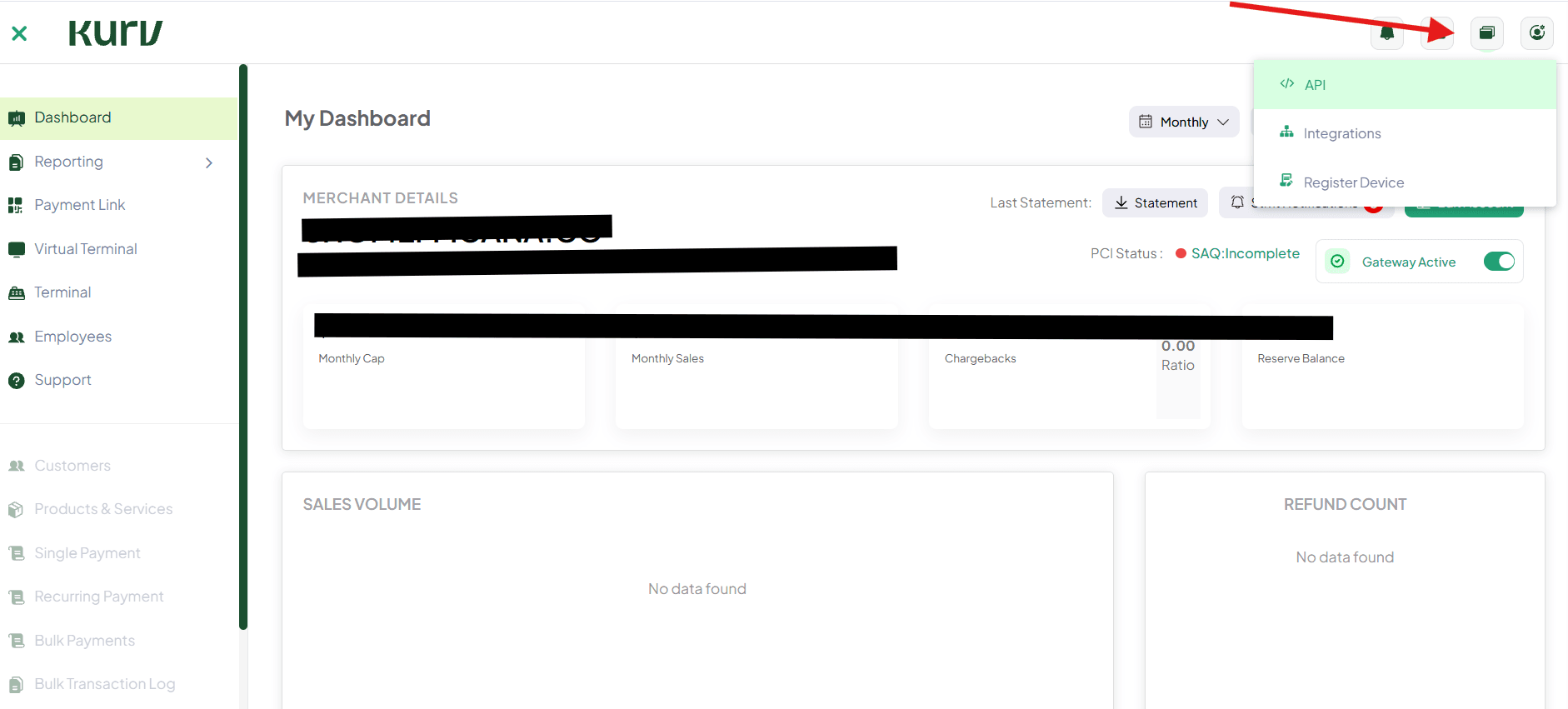
- This opens the Kurv Developer Dashboard where the API key is viewed and managed
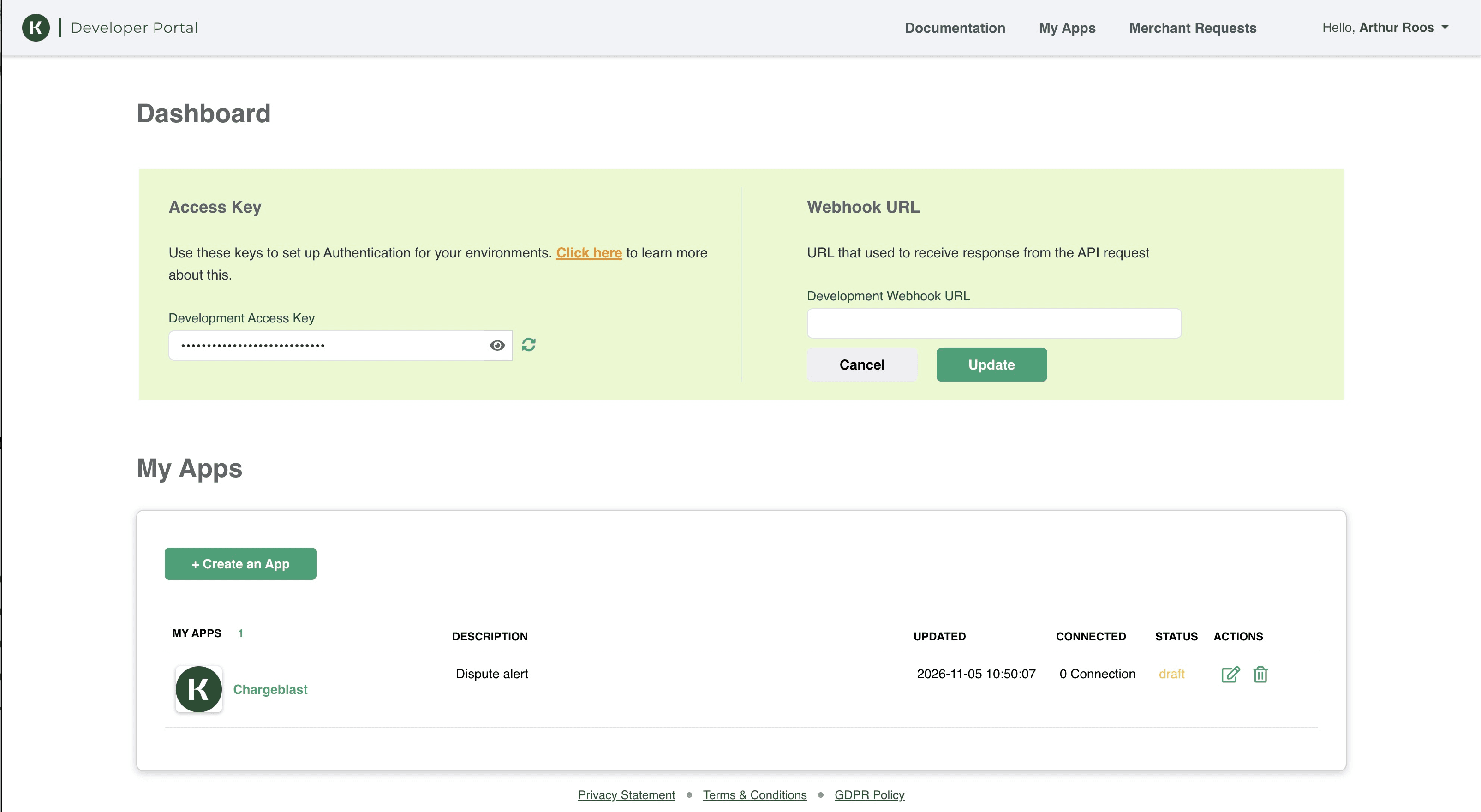
- Ensure your application is connected to your merchant account and its status is set to Published
- Verify that the application is enabled in your merchant dashboard
- Navigate to the Development Access Key section and copy your Access Key. It starts with
kp_live_ - Store it securely and don’t share it publicly
Note: Every application has two access keys: development mode (prefixkp_test_, URL:https://api-sandbox.kurv.app/) and production mode (prefixkp_live_, URL:https://api.kurv.app/). Make sure you use the production key (kp_live_) when setting up the live integration in Chargeblast, not the test key
Tags
kurvintegration
Was this article helpful?
Help us improve our documentation