












Chargeblast lets you manage more than one business under a single login by creating separate company profiles. Each company has its own dashboard, billing, integrations, alerts, and settings, so each business's data, invoices, and expenses stay separate.
Note: You don't need a separate company just to connect several accounts on the same processor. All available integrations let you add more than one account within a single company.
Create a new company when the account belongs to a different business.
Adding a new company
- Click your company name in the top left corner of the sidebar to open the company menu.
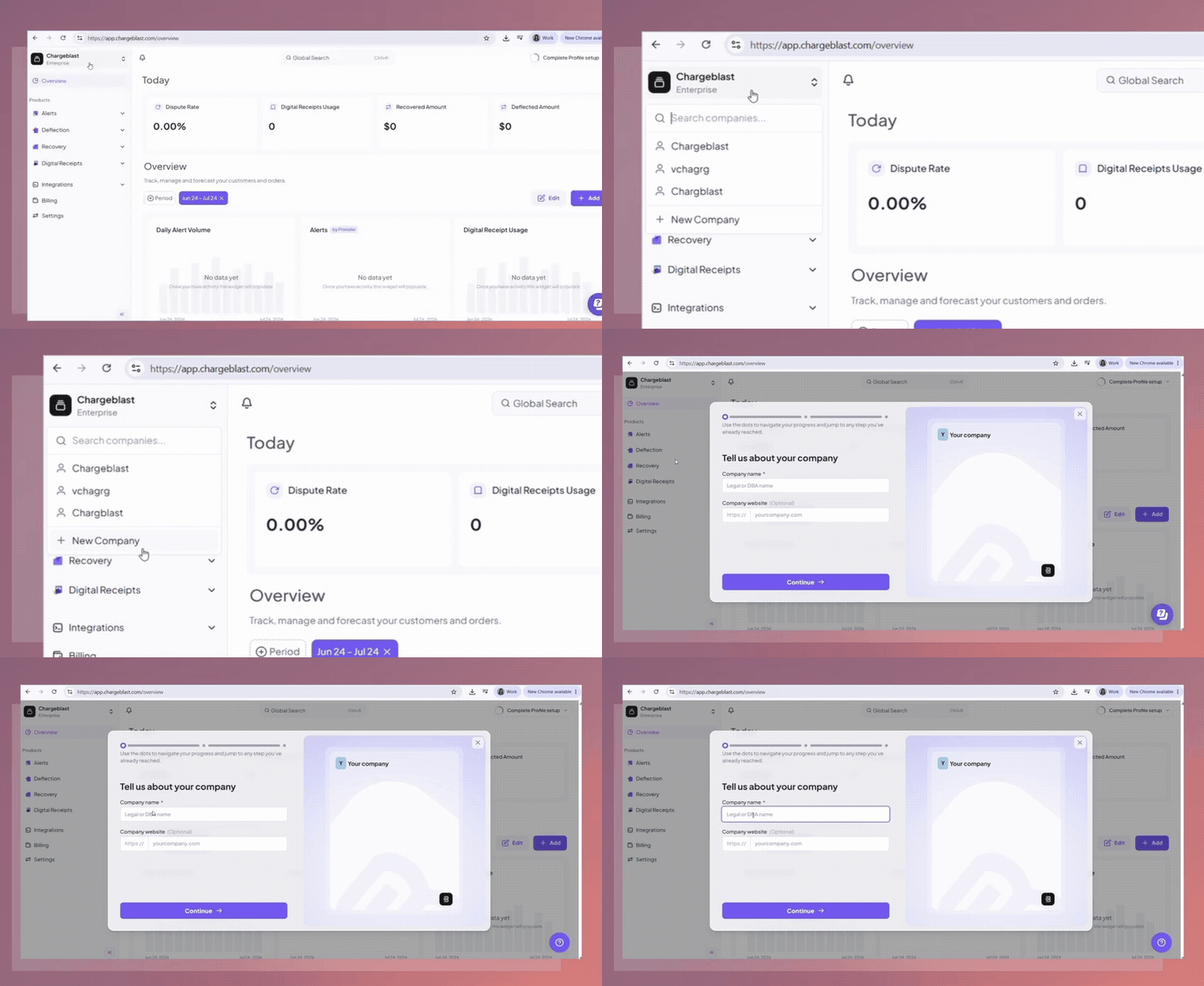
- Select + New Company at the bottom of the list.
- Enter the company name; this field is required. Chargeblast creates the company and switches you to it.
- Click Complete Profile setup in the top right corner and work through the checklist for the new company:
- Set up your profile
- Add a payment method. Invoices and payment methods are separate for each company, so you can track and deduct expenses for each business individually.
- Set up Alerts. Alert enrollments are set up separately for each company and don't carry over from your other companies.
- Set up Digital Receipts, Set up Deflection, and Set up Recovery, for whichever products this business uses.
- Connect the company's processor on the Integrations page. If the business uses more than one account on the same processor, use Add account on that integration's page to connect each one.
Switching between companies
- Click your company name in the top left corner of the sidebar. The menu lists every company linked to your login, including companies you've been invited to.
- If you have many companies, type in the Search companies… box to find one quickly.
- Select the company you want to view. If the company hasn't finished setup, the setup checklist reopens.
Switching companies doesn't change the data or settings of any other company on your login.
Tips
- By default, a new company sends alerts only to its registered email. You can set up Slack or SMS notifications separately for each company from the Integrations page.
- If a company you just added doesn't appear in the menu, reload the page and select it from the company menu. If it still doesn't appear, contact support rather than creating it again.
Note: Each company has its own separate integrations, enrollments, and settings. Nothing carries over automatically when you add a new one.
Tags
chargeblastadd multiple
Was this article helpful?
Help us improve our documentation